⚡ Built for scale
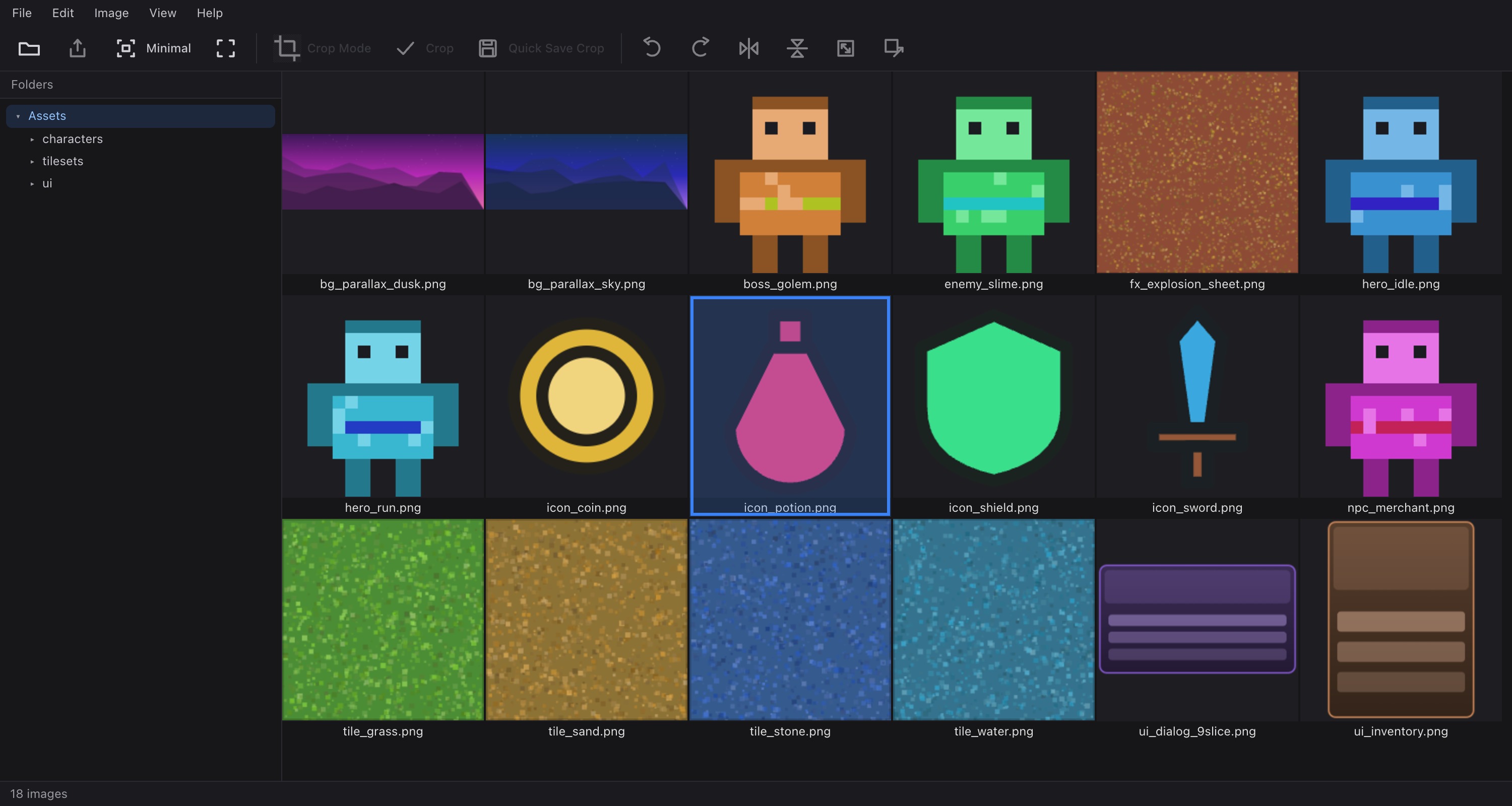
A virtualized thumbnail grid with background decoding on a worker pool and a two-tier cache — in memory and on disk. Thousands of images, no freezing. Every thumbnail shows the whole image with its file name.
🎯 Precision crop
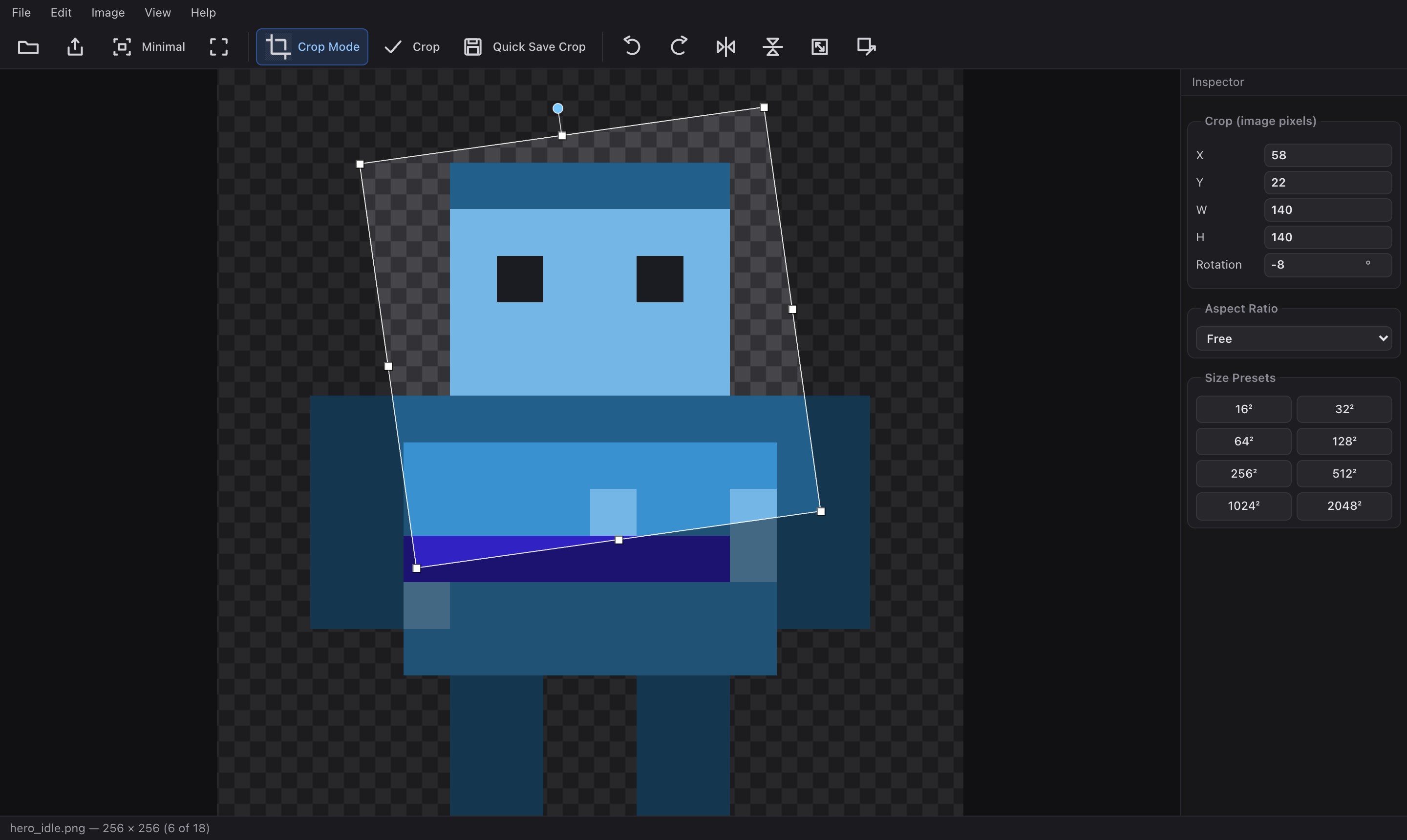
The crop rectangle lives in original image-pixel coordinates — not screen pixels. Move, resize and rotate with sub-pixel accuracy, lock an aspect ratio, or snap to game size presets from 16² to 2048².
🔒 Your files stay yours
Decoding, cropping and encoding all run inside the tab. Nothing is uploaded, nothing is cached on a server, and there is no account to create — the app makes no network requests at all once it has loaded.
🖼 A real viewer
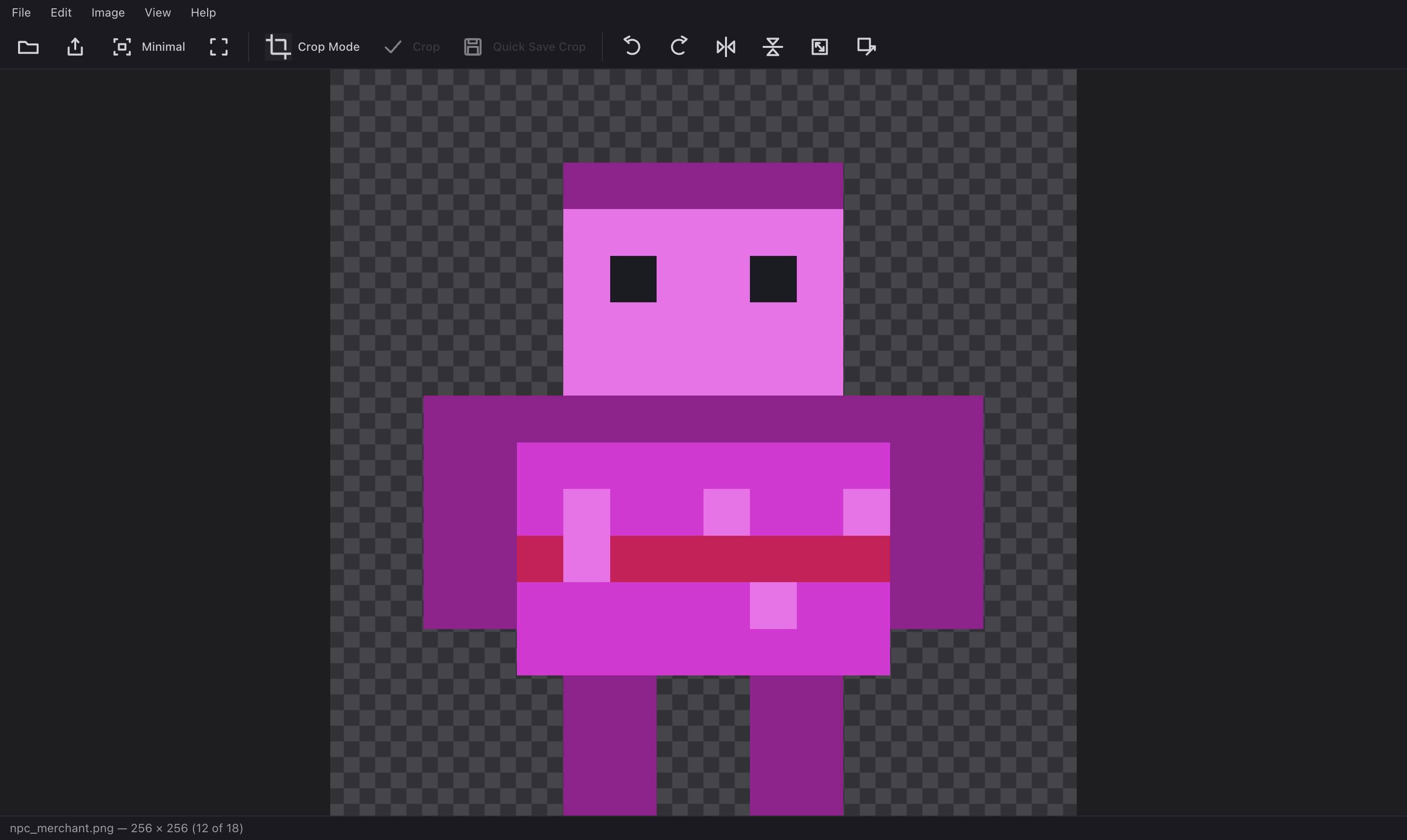
Wheel zoom, drag to pan, fit / 100%, pixel-perfect rendering at ≥100%, a transparency checkerboard, and an immersive fullscreen mode with arrow-key navigation.
🔄 Quick edits
Rotate 90° left or right, flip horizontally or vertically, scale by percentage, or resize to exact dimensions — all non-destructive and undoable with Ctrl+Z.
💾 Save straight back to the folder
In Chrome and Edge, CropViewer writes into the folder you opened:
quick-save crops with auto-numbered names, Save As with per-format
options, overwrite, and an optional /cropped folder.
📦 Wide format support
View PNG, JPEG, WebP, GIF, BMP, AVIF, TIFF, TGA, PSD, DDS, HDR and EXR. Export to PNG, JPEG, WebP, TIFF, BMP, TGA, HDR and EXR with per-format encode options.
🌑 Minimal mode
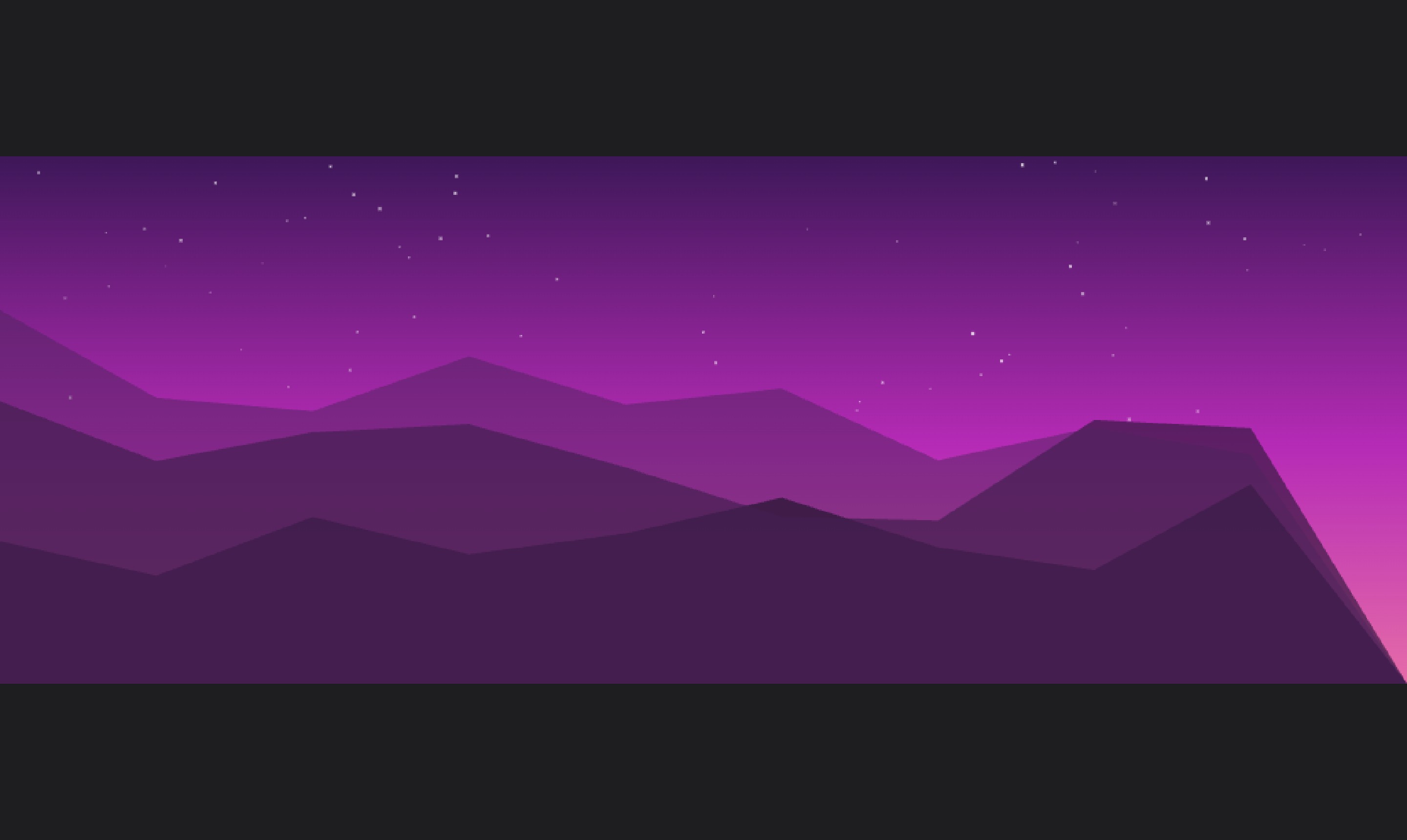
Hide every menu and panel so a single image fills the window. One click toggles it, Esc returns to the thumbnail grid, and the mode is remembered next time you open the app.
See it in action
Browse a whole asset folder
Point it at your sprites directory and every image appears in a virtualized grid with a folder tree beside it. Thumbnails decode in the background and are cached, so scrolling a huge folder a second time is instant.
Crop in true pixel coordinates
Drag the region on the canvas or type exact X / Y / W / H and rotation into the inspector — the two stay in sync live. Lock an aspect ratio, hold Shift to keep it while dragging a corner, or nudge the region one pixel at a time with the arrow keys.
A viewer that respects your pixels
Pixel-perfect nearest-neighbour rendering at 100% and above, so sprite edges stay crisp instead of blurring. A checkerboard backdrop shows exactly where the alpha is, and the status bar reports the file name, exact dimensions and position in the folder.
Minimal mode — nothing but the image
One click hides every menu, toolbar and panel so a single image fills the whole window. Esc or a double-click returns to the grid, and the mode is remembered — the next image opens minimal again.
Three steps, no setup
-
1
Open a folder
Click Open Folder… or drag one onto the window. Your browser asks once for permission — the folder is read directly from disk.
-
2
Find and crop
Scroll the grid, open an image, press C and set the region by dragging or by typing exact numbers.
-
3
Save it back
Enter quick-saves the crop next to the original as
name_crop.png, or use Save As for another format.
Browser support
Everything works everywhere; how the app saves depends on whether your browser supports the File System Access API.
Chrome · Edge · Brave Full
On desktop these support the File System Access API, so CropViewer gets read and write access to the folder you open: save in place, overwrite, rename, copy, delete, and extract ZIPs.
Safari · Firefox Read-only
The folder opens read-only. Browsing, viewing, cropping and every edit work exactly the same — saved files arrive as downloads instead of being written back into the folder.
🔒 Your images never leave your computer
CropViewer is not an upload service. When you open a folder, the browser hands the app a direct handle to those files — decoding, cropping, transforming and encoding all happen in the tab, on your CPU. There is no image server, no temporary bucket, and no telemetry.
Once the page has loaded, the app makes no network requests at all — there is nothing to sign in to and nothing to phone home about. That is why it keeps working with the network disconnected, and why you can check the whole thing yourself in the Network tab.
Keyboard shortcuts
On macOS, use ⌘ wherever Ctrl is shown. Full reference →
View & navigate
- ← →
- Previous / next image
- Space
- Next image
- Shift+Space
- Previous image
- F
- Fit to window
- 1
- Actual size (100%)
- F11
- Toggle fullscreen
- Esc
- Leave fullscreen, then back to the grid
Crop
- C
- Toggle crop mode
- ← ↑ → ↓
- Nudge crop 1 px (in crop mode)
- Shift+drag
- Keep the aspect ratio on a corner
- Ctrl+K
- Apply crop
- Ctrl+Z
- Undo crop / transform
Edit & transform
- Ctrl+[
- Rotate left
- Ctrl+]
- Rotate right
File
- Ctrl+O
- Open folder
- Enter
- Quick-save crop (viewer) / open or rename (grid)
- Ctrl+S
- Save (overwrite)
- Ctrl+Shift+S
- Save As…
- Ctrl+P
Questions
Are my images uploaded anywhere?
No. The browser gives the app a handle to the files on your disk and everything runs locally in the tab. You can disconnect from the network and keep working.
Can it save back into my folder?
Yes, in Chrome, Edge and other Chromium browsers on the desktop — those support the File System Access API. In Safari and Firefox the folder is read-only and saved files come through as downloads.
Which formats can it open?
PNG, JPEG, WebP, GIF, BMP, AVIF, TIFF, TGA, PSD, DDS, HDR and EXR. ZIP archives are listed and can be extracted. Export covers PNG, JPEG, WebP, TIFF, BMP, TGA, HDR and EXR.
Is it really free?
Yes — every feature and every export format, with no account, no trial and no watermark. It is a static page that runs on your own machine, so there is nothing to bill for.
Can I install it like a normal app?
Yes. Chrome and Edge offer “Install” from the address bar. Installed, it gets its own window, works offline, and can open images straight from your file manager.
Does it work offline?
Yes. The app caches itself on first load and needs no network afterwards — you can pull the plug and keep working.
Open a folder and start cropping.
No install, no account, no upload.
Open CropViewer →